How to Create a QR Code for a WhatsApp Group (3 Easy Methods)

QR codes have become an essential tool for quickly sharing information, and WhatsApp group QR codes make it incredibly easy to add members to your groups. Whether you're managing a business community, organizing an event, or running a family group, a WhatsApp QR code simplifies the invitation process.
In this comprehensive guide, we'll explore three different methods to create a QR code for your WhatsApp group, each with its own advantages. Plus, we'll show you how to track scans and measure engagement with your QR code.
Pro Tip: WhatsApp group QR codes are different from personal QR codes. Group QR codes contain an invite link that allows anyone to join your group when scanned, while personal QR codes are for adding individual contacts.
Method 1: Using WhatsApp's Built-in QR Code Feature
The simplest way to create a WhatsApp group QR code is using WhatsApp's native feature. Here's how:
Open your WhatsApp group
Go to the group you want to create a QR code for and tap on the group name at the top.
Access group invite link
Scroll down and select "Invite via link" (on Android) or "Invite to Group via Link" (on iPhone).
Generate QR code
Tap on "QR code" next to the invite link. WhatsApp will automatically generate a QR code for your group.
Save or share your QR code
Tap the share icon to save the image to your phone or share it directly through other apps.

Example of a WhatsApp-generated group QR code
Pros of this method:
- No third-party tools required
- Simple and quick to generate
- Directly integrated with WhatsApp
Cons of this method:
- No customization options
- No tracking or analytics
- QR code changes if you reset the group link
Method 2: Using a Free QR Code Generator
For more customization options, you can use a free online QR code generator. Here's how to create a WhatsApp group QR code using our free QR code generator:
Get your WhatsApp group invite link
Follow steps 1-2 from Method 1 to access your group's invite link. Copy this link to your clipboard.
Visit a QR code generator
Go to micronirala.com/qrcode-generator or any reputable QR code generator.
Paste your WhatsApp group link
Select "URL" as the QR code type and paste your WhatsApp group invite link in the input field.
Customize your QR code (optional)
Change colors, add a logo, or adjust the design to match your branding. For WhatsApp groups, we recommend keeping it simple for maximum scannability.
Generate and download
Click "Generate QR Code" and download the image in your preferred format (PNG, SVG, or EPS).

Customized WhatsApp group QR code with branding
Pros of this method:
- Customizable design options
- Higher quality image files
- Can add your logo or branding
Cons of this method:
- Requires using a third-party tool
- Still no tracking capabilities
- Need to regenerate if group link changes
Design Tip: When customizing your WhatsApp group QR code, ensure there's sufficient contrast between the code and background. Black on white typically has the highest scan success rate.
Method 3: Using a Dynamic QR Code with Tracking
For businesses or organizations that need to track QR code scans, dynamic QR codes are the best solution. Here's how to create a trackable WhatsApp group QR code:
Get your WhatsApp group invite link
As in previous methods, copy your group's invite link from WhatsApp.
Use a dynamic QR code generator
Sign up for a service like QR Tiger, QR Code Generator, or Bitly (many offer free plans with limited features).
Create a dynamic QR code
Select "URL" as the QR type and paste your WhatsApp group link. The service will create a redirect URL that tracks scans.
Customize and generate
Add any design elements you want, then generate your QR code.
Download and track
Download your QR code and place it wherever you want. Monitor scans through your QR code service dashboard.

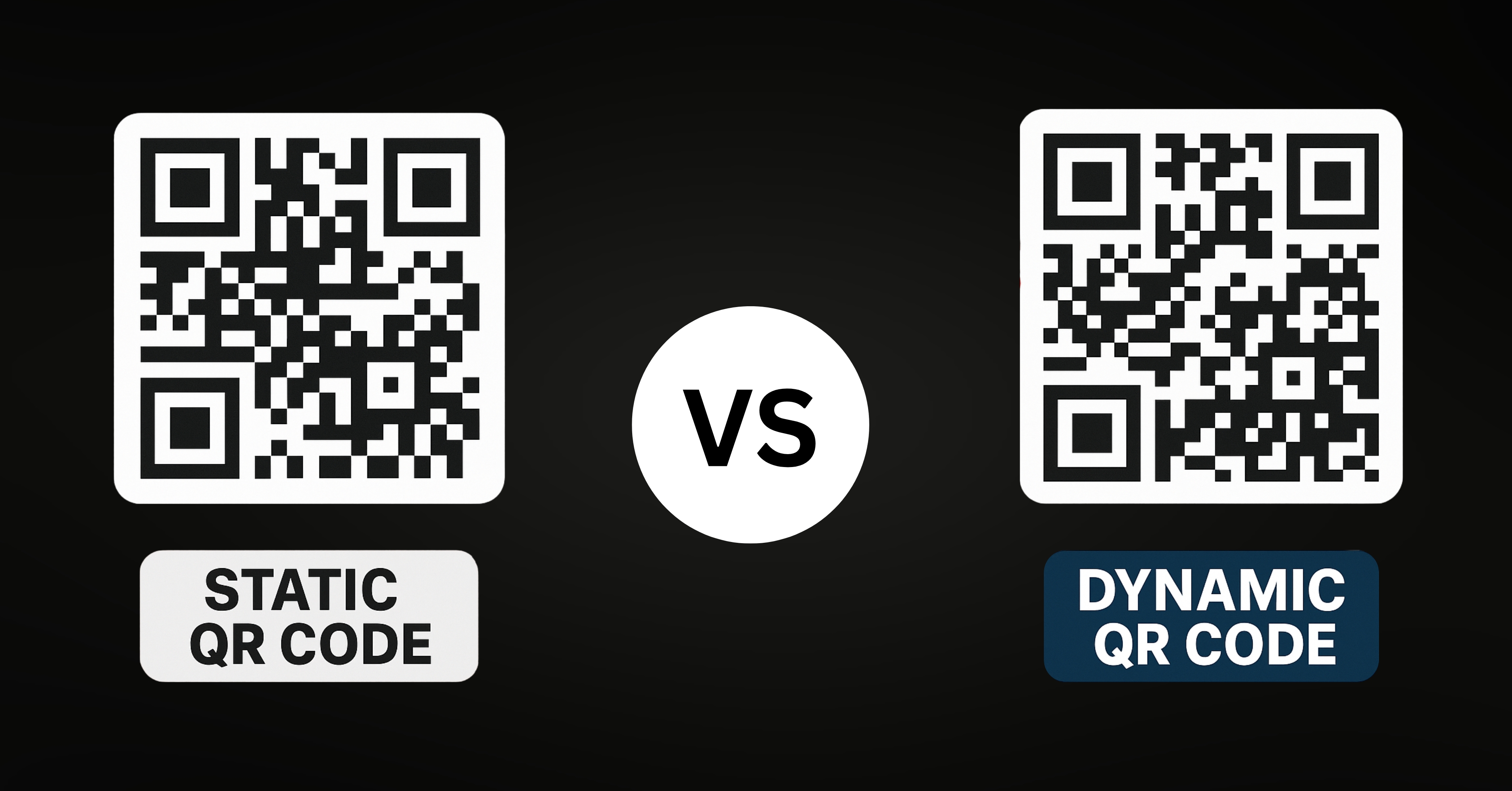
Dynamic QR code with tracking capabilities
Pros of this method:
- Tracks number of scans and locations
- Can update destination URL without changing QR code
- Often includes analytics dashboard
- Customizable designs available
Cons of this method:
- Usually requires paid plan for full features
- More complex setup process
- Relies on third-party service
Business Tip: If you're using QR codes for marketing, consider a paid dynamic QR code service. The analytics can help you measure campaign effectiveness and optimize your strategy.
Best Practices for WhatsApp Group QR Codes
To get the most out of your WhatsApp group QR codes, follow these professional tips:
1. Optimal Placement
Place your QR code where it's easily scannable:
- Printed materials: At least 1.5 x 1.5 inches (3.8 x 3.8 cm) in size
- Digital displays: Minimum 250 x 250 pixels
- Ensure good contrast with the background
- Avoid reflective surfaces for printed codes
2. Add Clear Instructions
Not everyone is familiar with QR codes. Include simple instructions like:
"Scan this QR code with your phone's camera to join our WhatsApp group"
3. Test Before Distribution
Always test your QR code with multiple devices before printing or sharing widely. Check that it:
- Opens WhatsApp directly (not a browser first)
- Correctly prompts to join your specific group
- Works from different distances and angles
4. Consider Group Settings
Before sharing your QR code widely, review your group settings:
- For public groups: Set appropriate group rules
- For private groups: Consider approving new members
- Update group description to welcome new members
5. Refresh Periodically
For security, periodically reset your group invite link (which will invalidate old QR codes):
- Go to Group Info > Invite via link
- Tap "Reset link"
- Generate a new QR code with the updated link
Frequently Asked Questions
Can I create a QR code for a WhatsApp group without being an admin?
No, you need to be an admin of the WhatsApp group to access the invite link required to create the QR code.
Do WhatsApp group QR codes expire?
The QR code itself doesn't expire, but it will stop working if the group admin resets the invite link or if you leave the group.
Can I track who scans my WhatsApp group QR code?
WhatsApp doesn't provide scan tracking. For tracking capabilities, you'll need to use Method 3 with a dynamic QR code service.
What's the difference between a WhatsApp group QR code and a personal QR code?
A group QR code contains an invite link to join a WhatsApp group, while a personal QR code is for adding individual contacts to your phone's address book.
Can I print WhatsApp group QR codes on merchandise?
Yes, but be cautious about making group QR codes too public. Anyone who scans the code can join the group, which might lead to spam or unwanted members.
Conclusion
Creating a QR code for your WhatsApp group is a simple process that can significantly streamline how people join your community. Whether you choose WhatsApp's built-in generator, a free online tool, or a dynamic QR code service depends on your specific needs:
- For simplicity: Use WhatsApp's native QR code feature (Method 1)
- For customization: Use a free QR code generator (Method 2)
- For tracking: Use a dynamic QR code service (Method 3)
Remember to test your QR code before sharing it widely, and consider the privacy implications of making your group easily joinable. With these methods, you can create effective WhatsApp group QR codes for any purpose—from business communities to family groups.
Ready to create your QR code? Try our free QR code generator to make customized WhatsApp group QR codes in seconds!
Leave a Comment